•
Travel Journal
Blog Posts
•
•
•
•
•
Travel Journal
Pin Traveler Blog

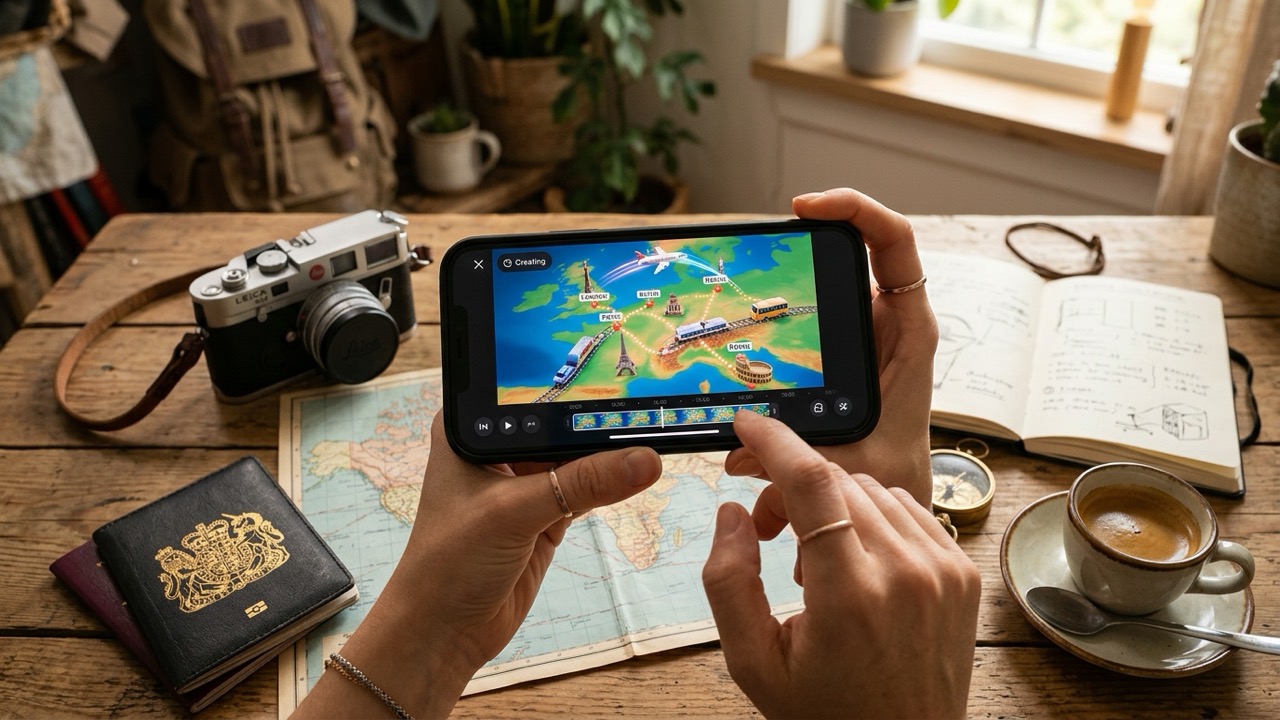
An animated travel map video is the clip where a small plane or car moves across a map from one stop to the next. It is the standard opening for a travel vlog, the most-shared format for a trip recap, and — once you have the stops in your head — about a minute's work.
This guide walks through the whole thing: what to decide before you open an app, how to build the route, which export size to use for each platform, and where the photos and music go. The worked example uses Trip Animator by Pin Traveler (on the App Store as Travel & Trip Video Animator), but the decisions are the same in any route animation app.
A recap animates a trip you took. A preview animates one you are about to take — the "here's the plan" story on the way to the airport. Same video, different caption. Route animation apps do not care about dates, so both work identically; you are drawing stops, not replaying a GPS log.
List them in order. Cities are enough — Lisbon → Porto → Madrid → Barcelona. Add the airport as a stop only if there was a layover worth showing. Fewer stops make a cleaner clip; a ten-city grand tour is fine, a forty-stop bar crawl is a different kind of video.
This is the part people skip and then wonder why the clip looks flat. Each leg has a transport mode — flew in, took the train, drove, took a bus. Writing it next to the stop list takes ten seconds and is what makes the animation look like the trip instead of a line.
Lisbon ✈ → Porto 🚆 → Madrid 🚆 → Barcelona 🚗 → Girona ✈ → home
Open Trip Animator and tap each destination on the map in the order you travelled. Every tap adds a stop; there is no cap on how many.
You are tapping the city, not the hotel. The animation is about the journey between destinations, and a route drawn between city centres reads correctly at video scale. If your trip was a road trip with stops in small towns, tap the towns — the car will route through them on real roads.
For each leg between two stops, choose car, plane, train or bus.
This is where the app does its work. A car leg is routed along the actual road network, so the drive bends where the highway bends. A plane leg switches the view to a globe and the aircraft follows a curved great-circle arc — the path a real flight takes, which looks wrong on a flat map and right on a sphere. A train leg runs on rail between the two. When the mode changes from one leg to the next, the vehicle and the map change with it automatically; you do not cut the video into pieces.
Get this right and the clip is 80 per cent done.
A few controls: the map style, the colour of the route line, and how fast the animation runs. Match the style to where the clip is going — a darker map reads well under text overlays in a Reel; a lighter one suits a YouTube intro. For speed, err on the fast side: social feeds reward clips that resolve in under ten seconds, and a viewer will re-watch a quick one before they finish a slow one.
This is the step that decides whether the video looks native on the platform or looks cropped.
| Platform | Aspect ratio | Trip Animator export |
|---|---|---|
| Instagram Reels, Stories | 9:16 vertical | Vertical |
| TikTok | 9:16 vertical | Vertical |
| YouTube Shorts | 9:16 vertical | Vertical |
| Instagram feed post | 1:1 square (or 4:5) | Square |
| YouTube video intro | 16:9 landscape | Landscape |
| Family group chat | Anything — vertical plays best on phones | Vertical |
Export once per destination shape rather than cropping a landscape clip later; the map framing is set for each ratio, so the stops stay in frame.
Trip Animator produces the route clip and stops there — no photo layer, no music. That is a deliberate boundary, and for most people it is the faster workflow, because the photos and sound were going to be added in Instagram, TikTok or CapCut anyway.
If you want the photos to appear on the map as the vehicle arrives at each stop, that is a different kind of app — TravelAnimator and Mult.dev do it in-app, at the cost of a longer setup per video. Our roundup of the best travel map animation apps compares them.
The same animation is built into the Pin Traveler travel map app as Animated Trips. If your trips are already recorded there, you can animate them in place without re-entering the stops. Trip Animator is the standalone version for people who want the animation without keeping a travel map — same engine, no account, nothing to set up.
No. You tap the stops; the app draws the route between them, along roads for car legs and on a globe for flights. GPS or GPX files only matter if you want the exact line you walked or cycled, which is a different use case.
Yes. Route animation apps draw from a list of stops, not from a recording, so a preview and a recap are the same process.
9:16 vertical. Export vertical rather than cropping a landscape clip, so the framing is built for the shape.
In the app where you post — Instagram, TikTok and YouTube Shorts all have a sound library — or in CapCut or another editor before uploading. Trip Animator exports the route clip without audio.
Yes. Set the transport mode per leg; the map switches from globe to road view automatically when the leg changes.
Not at the time of writing — it is on iPhone, iPad and Mac. TravelBoast, TravelAnimator and Mult.dev have Android apps.

Nine apps and web tools that turn a list of stops into an animated route video, compared on what they animate, what they import, and what you pay for. Tested September 2026.
2026-10-13

Six apps for turning flights into an animated map video, compared on the one thing that makes a flight animation look right — a globe with a curved path — plus multi-leg support and export formats.
2026-10-13

Seven apps compared for turning a road trip into an animated map video, with attention to the thing that matters most for cars — whether the route follows real roads or draws a straight line.
2026-10-13